Understand the bulk export options page, including targets, content scope, file settings, Notion behavior, export history, and Skip Already Exported Records.
Before You Start
Open the AI platform you want to export from first, then open the extension options page. The options page detects the active supported source tab and uses that platform context for bulk export.
Bulk export is available across AISaver products, but supported targets vary by product. ChatGPT, Claude, Gemini, and Perplexity focus on Notion, PDF, and Markdown. NotebookLM focuses on local file outputs such as Markdown, PDF, HTML, DOCX, JSON, and text.
- Open a supported source tab such as ChatGPT, Claude, Gemini, or Perplexity
- Open the extension options page and use the Bulk Export view
- Check the Bulk Export Access panel before starting a large job
- Use Export Settings before the run if you need to change Notion, PDF, or Markdown behavior
Export Target
The Export Target section controls where the bulk job sends each conversation. Notion sends normalized conversations into the connected Notion database. PDF downloads a readable document. Markdown downloads a local note file for Obsidian or standard Markdown workflows.
Target-specific configuration no longer lives inside the bulk run flow. If a target needs setup, use the Configure Target button or switch to Export Settings before starting the job.
- Choose Notion when you want a searchable database record
- Choose PDF when you need a fixed document for reading, sharing, or archiving
- Choose Markdown when you want local files for Obsidian or another note system
- Notion must be connected and have a destination database selected before it is available
Content Scope
The Select Content or Sync Options section controls which conversations enter the queue. For normal chat history, Latest exports only the latest page currently exposed by the platform, while All keeps fetching until the available history is exhausted.
Some platforms expose extra source choices. ChatGPT can export Chat Pages, GPT Projects, or Group Chats. Perplexity can export general thread history or conversations from selected Spaces. Claude and Gemini use the shared chat-page scope.
- Latest is best for quick incremental exports or testing a setup
- All is best for a full archive run
- ChatGPT Projects can target all projects or one selected project
- ChatGPT Group Chats can export the latest five rooms or up to 500 rooms
- Perplexity Spaces require selecting at least one Space before starting
Skip Already Exported Records
Skip Already Exported Records avoids duplicate exports for conversations that already have a successful record for the current platform and current target.
This means a successful ChatGPT Markdown export can be skipped in the next ChatGPT Markdown bulk run, but it does not automatically skip a ChatGPT PDF or Notion export. Each target keeps its own success history. If the Success Records history is cleared, the extension no longer has those records available for duplicate-skip checks.
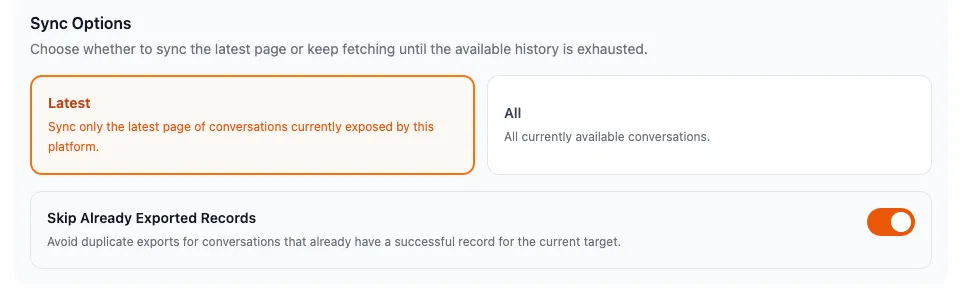
- Turn it on when resuming a large export or running regular incremental backups
- Turn it off when you intentionally want to regenerate files or create another copy
- It checks successful export records, not failed records
- It is separate from Notion duplicate handling such as Skip sync if exists, Overwrite if exists, and Always insert new pages
Export Settings
The Export Settings view stores persistent configuration used by popup exports and bulk exports. Choose the target first, then adjust the settings for that target.
For PDF and Markdown exports, the shared Filename Pattern controls how exported files are named. Supported placeholders include {date}, {original_date}, {updated_date}, and {title}. Use Original Date or Updated Date patterns when you want filenames to reflect the conversation timeline instead of the day you export.
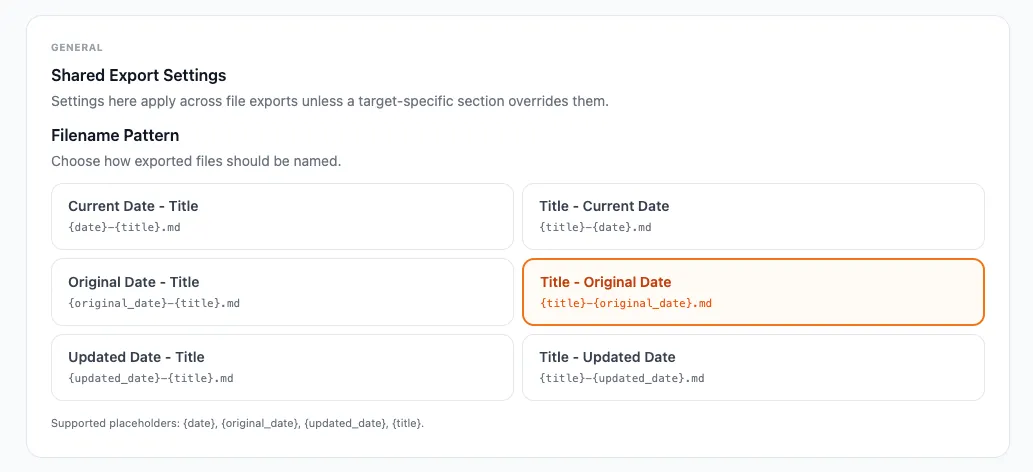
- Current Date - Title uses the export date first
- Title - Current Date puts the conversation title before the export date
- Original Date options use the conversation creation date when available
- Updated Date options use the conversation update date when available
- Filename Pattern does not replace Notion duplicate handling or bulk skip behavior
PDF Export Settings
PDF Export Settings control PDF rendering and the default save directory for the active platform. The PDF Subdirectory must be a relative folder name because Chrome downloads cannot write directly to arbitrary absolute paths.
Download Image & Files tells the extension to embed chat images in the PDF and save downloadable files into an attachments folder when they are available from the source platform.
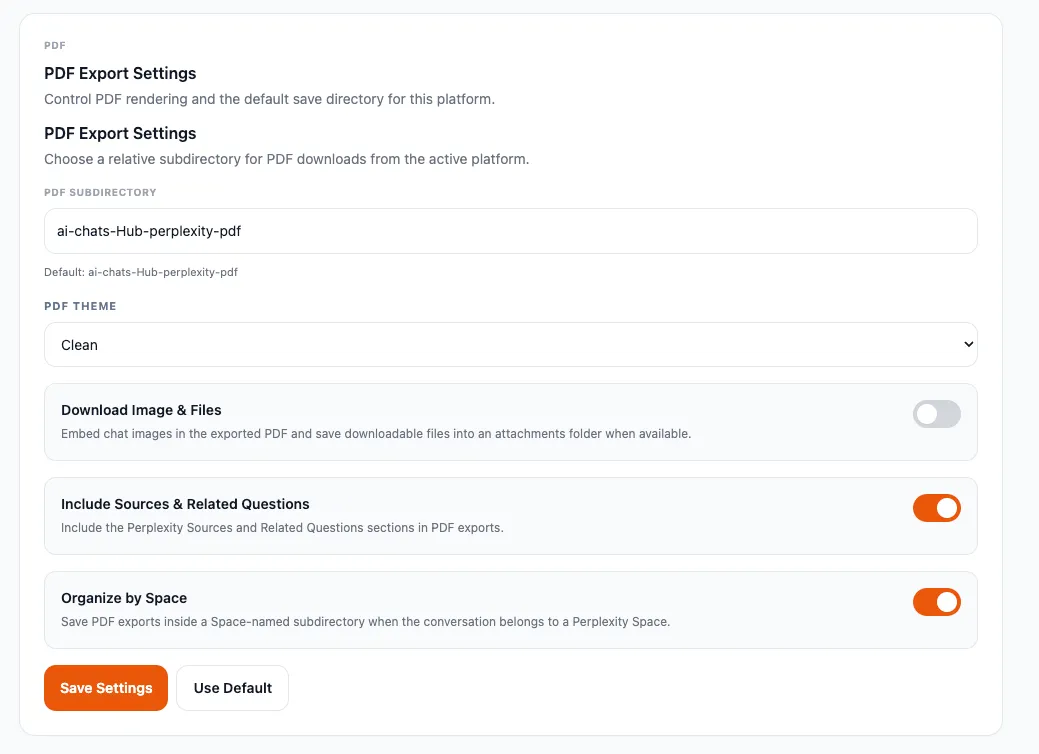
- PDF Theme chooses between Clean and Report PDF styling
- PDF Subdirectory controls the relative folder used for PDF downloads from the selected platform
- Download Image & Files embeds supported chat images and saves available attachments
- Gemini Organize by Gem saves exports inside a Gem-named subfolder when available
- Perplexity Include Sources & Related Questions controls whether source and related-question sections are included in PDFs
- Perplexity Organize by Space saves PDFs inside a Space-named subdirectory when available
Markdown Export Settings
Markdown Export Settings control local Markdown output for Obsidian and standard note workflows. The Markdown Subdirectory is also platform-specific, so each source can have its own default folder.
When Download Image & Files is enabled for Markdown, supported images are downloaded into an images folder and downloadable files are saved into an attachments folder next to the Markdown export.
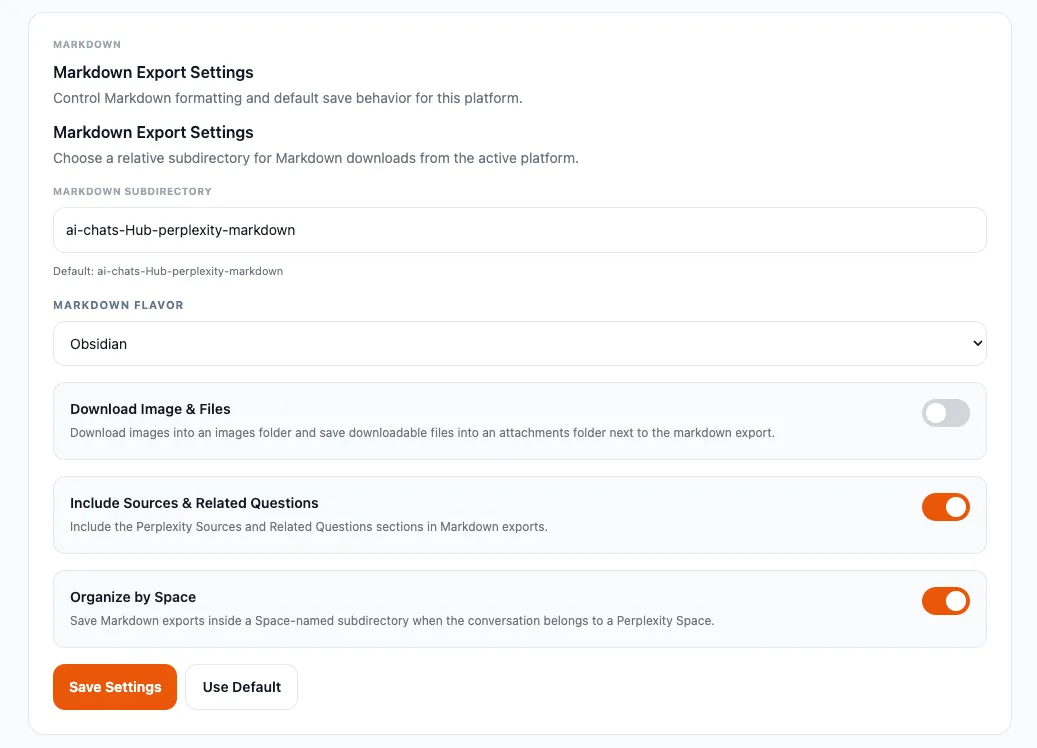
- Markdown Flavor chooses Obsidian or Standard Markdown formatting
- Markdown Subdirectory controls the relative folder used for Markdown downloads from the selected platform
- Download Image & Files saves supported images and attachments next to the Markdown file
- Gemini Organize by Gem saves exports inside a Gem-named subfolder when available
- Perplexity Include Sources & Related Questions controls whether source and related-question sections are included in Markdown
- Perplexity Organize by Space saves Markdown exports inside a Space-named subdirectory when available
Notion Settings
For Notion, first connect the workspace and select the destination database. The Notion export settings then control how the extension handles existing pages and long conversations.
Notion duplicate handling is different from Skip Already Exported Records. Skip Already Exported Records decides whether a conversation enters the bulk queue. Notion sync behavior decides what happens after a queued conversation is sent to Notion and a matching database page already exists.
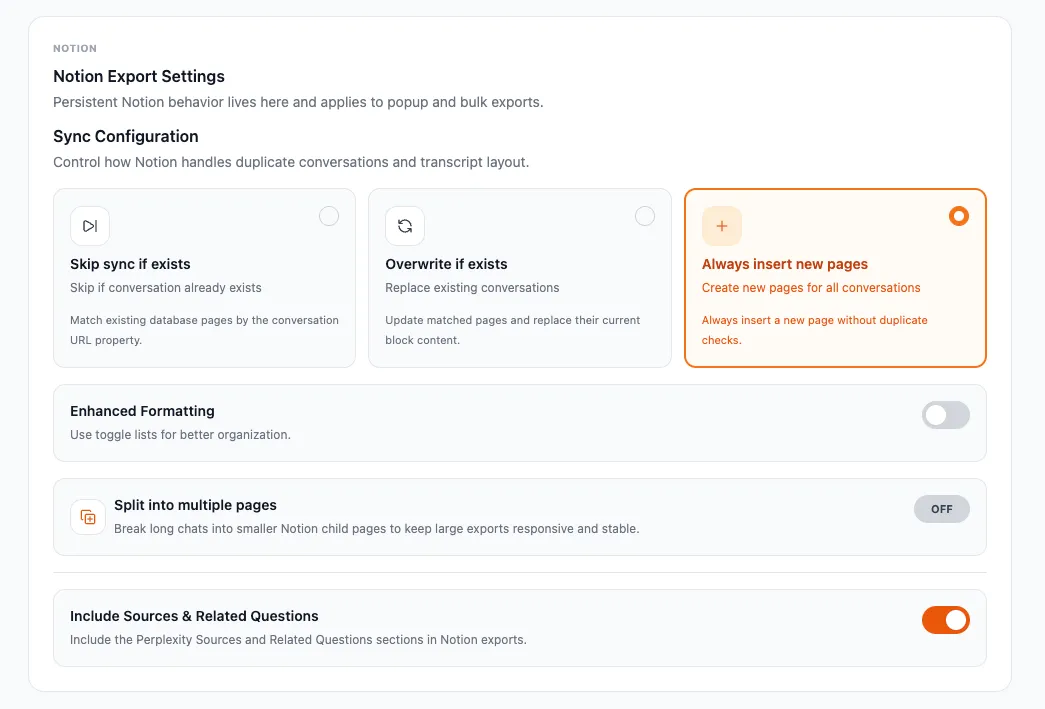
- Skip sync if exists matches existing database pages by the conversation URL property
- Overwrite if exists updates matched pages and replaces their current block content
- Always insert new pages creates a new Notion page without duplicate checks
- Enhanced Formatting uses toggle lists for better organization
- Split into multiple pages breaks long chats into child pages with 10, 20, 30, 50, or custom messages per page
Export History
The Export History view shows recent sync runs, failed records, and successful records. Sync History summarizes total, success, skipped, and failed counts for recent bulk and single export runs.
Failed Records can be downloaded when you need to inspect repeated failures. Success Records are the records used by Skip Already Exported Records, so clearing them also clears the duplicate-skip memory for future runs.
- Use Sync History to review whether a bulk job completed, failed, skipped records, or was cancelled
- Download Failed Records when reporting a recurring export issue
- Keep Success Records if you rely on Skip Already Exported Records for future incremental exports
- Clear Success Records only when you want the extension to treat previous successful exports as unknown