Fix repeated save prompts during Perplexity bulk export by checking Chrome download settings before exporting many threads.
Why Chrome May Ask For Every File
When Bulk Export Perplexity to PDF, MD(Obsidian), and Notion saves many local files, Chrome handles each PDF or Markdown file as a browser download.
If Chrome is configured to ask where each file should be saved, the browser will show a confirmation prompt for every exported thread. This makes a bulk export feel like a manual one-by-one export even when the extension is processing the queue automatically.
- The extension starts the export queue in bulk
- Chrome controls whether each downloaded file needs manual confirmation
- The most common cause is the setting named "Ask where to save each file before downloading"
Recommended Chrome Setting
Before exporting many Perplexity threads to PDF or Markdown, open Chrome download settings and disable the per-file save prompt.
You can paste chrome://settings/downloads into the Chrome address bar, then find the setting named "Ask where to save each file before downloading" and turn it off.
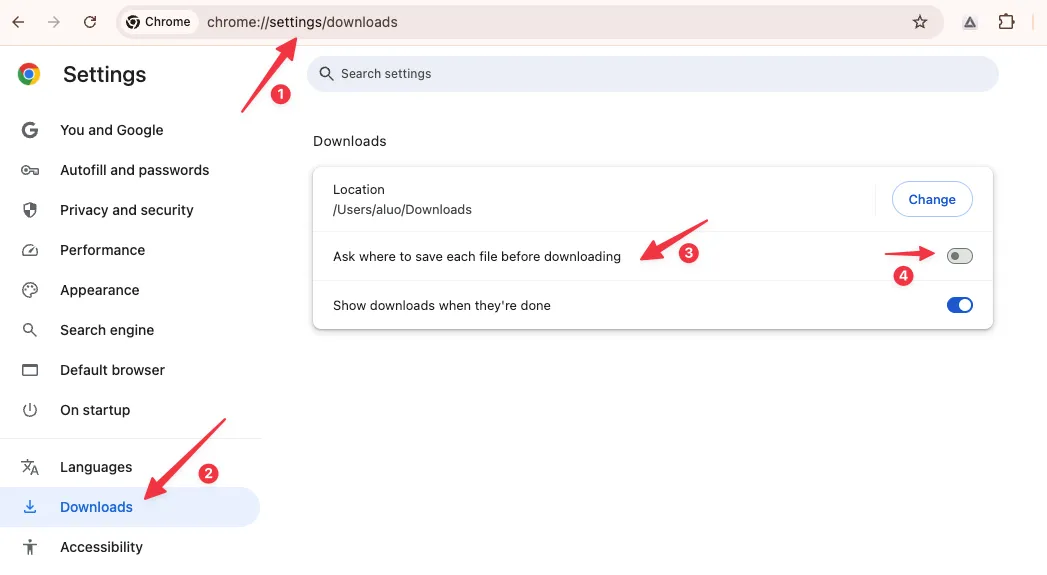
- Open chrome://settings/downloads
- Choose a stable default download folder
- Turn off "Ask where to save each file before downloading"
- Run the bulk export again after the setting is changed
Suggested Setup For Large Exports
For large archives, create a dedicated folder such as Perplexity Exports, set it as your Chrome download location, and keep the browser window active while the export is running.
This setup lets Chrome save each file without asking for a destination every time. It also makes it easier to review which conversations were exported if a long run is interrupted.
- Use a dedicated folder for the export run
- Avoid changing Chrome download settings while an export is active
- Keep enough disk space available before exporting hundreds of conversations
- If the browser reports an error, check the download folder before starting another large run
If The Export Starts From The Beginning Again
If a previous bulk export was interrupted, first check the destination folder and confirm which files were already created. Then restart with the Chrome prompt setting disabled so the browser does not block every file save.
When reporting a resume or duplicate-download problem, include the export format, approximate number of threads, the browser version, and whether "Ask where to save each file before downloading" was enabled during the failed run. Those details help us separate browser download prompts from extension-side resume behavior.