Configure output folders, PDF appearance, import history, and understand local-first data handling.
Output Formats
NotebookLMExporter supports Markdown, PDF, HTML, DOCX, JSON, and plain text. Choose Markdown for local note systems, PDF for stable sharing, DOCX for editing, HTML for styled reading, JSON for structured backup, and text for simple archives.
The extension remembers recent preferences so repeated exports do not require reselecting the same source, scope, and format every time.
- Markdown works well for Obsidian and local knowledge workflows
- PDF uses Chrome print-to-PDF through a temporary render tab
- DOCX is useful when content should continue into Word-style editing
- JSON and text are useful for structured backup and simple records
Import History And Highlight Workflow
Import history gives a local record of where imported content came from and which notebook received it. This is useful when NotebookLM becomes part of a larger research workflow instead of a one-off destination.
Highlight import is designed for smaller excerpts. When a full page would add too much noise, selected text can be pushed into a notebook with lighter friction.
- Track source, destination notebook, status, and timestamps locally
- Delete individual history items or clear the full local history
- Use selected text import when only one part of a page matters
- Keep import workflow records in Chrome local storage for convenience
PDF And Folder Settings
The Options page stores the output directory and PDF preferences. PDF settings include theme, font size, margins, summary, table of contents, role labels, watermark, page numbers, and note title behavior.
The output directory is a relative Downloads subfolder because Chrome extensions cannot write directly to arbitrary absolute paths.
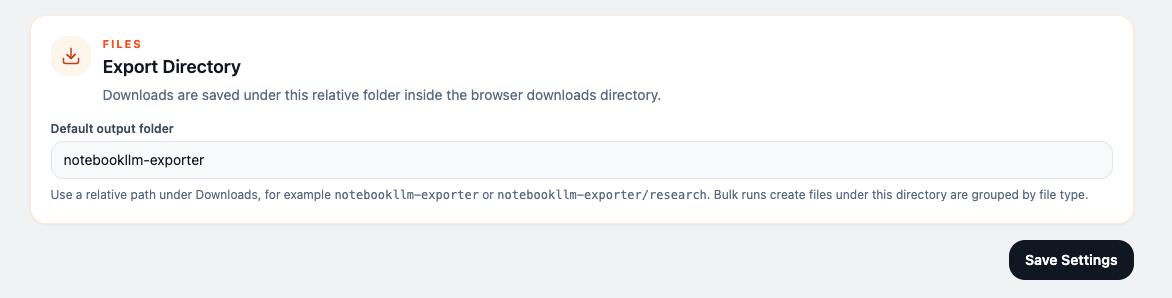
- Set a stable output subfolder such as notebookllm-exporter
- Choose light, dark, sepia, blue, green, or nord PDF themes
- Control PDF font size, margins, summary, table of contents, and page numbers
- Keep note titles visible when exporting Studio Notes
Privacy And Permissions
NotebookLMExporter does not require a separate account for local content export and does not send NotebookLM content to a developer-controlled server. Notebook content is processed in the browser for the workflow the user requests.
The extension uses downloads to save generated files, storage to remember preferences, temporary preview data, and import history, debugger for Chrome print-to-PDF, context menu support for highlight import, and host permissions to detect supported pages and extract selected content.
- NotebookLM content is accessed only on supported pages opened by the user
- Files are generated locally and saved through Chrome downloads
- Local preferences, import history, and temporary preview records stay in Chrome storage
- Debugger permission is used only for the PDF render and print flow